


eero wifi system
4.85.86K Reviews
App Specs
- Version
- 26.8.1.36789
- Updated On
- License
- Free
- Downloads
- 5,000,000+
- Developer
- eero LLC
- Categories
- Lifestyle
- Platform
- Android, iOS
Screenshots
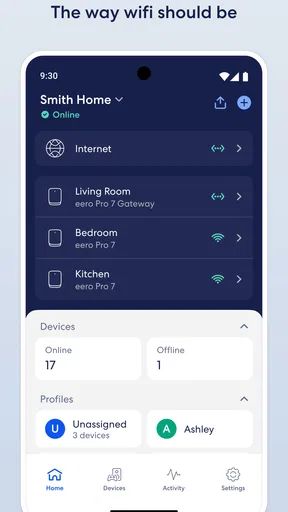
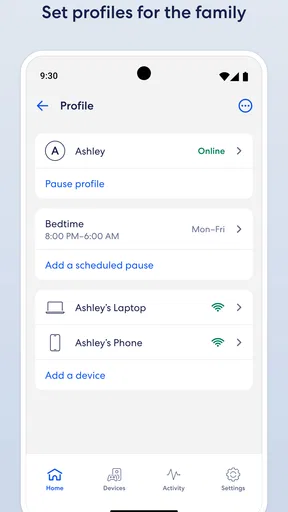
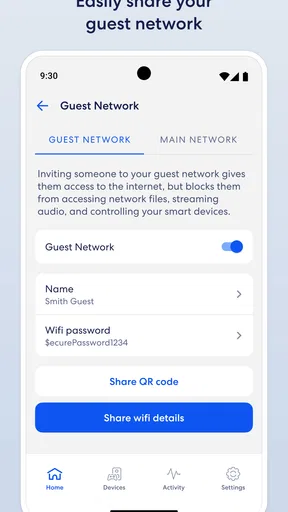
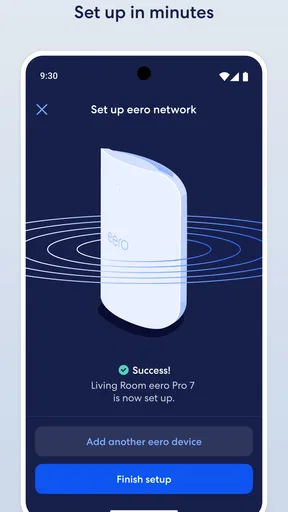
 Analysis by AppCompare
I judge a home Wi-Fi setup by the moments when I stop thinking about Wi-Fi: a call continues as I walk from room to room, a video loads where the old router struggled, and family members can use the network without taking turns. The eero app is designed around managing a mesh Wi-Fi system, so its central appeal is extending coverage through the home rather than asking one router to reach every awkward corner. That approach can make a real difference, though it works best when the network layout and the household’s needs suit mesh.
What the mesh approach changes
With a conventional single-router setup, the router has to send a usable signal from one location across the whole home. Thick walls, distance, and a less-than-ideal router position can leave weaker areas. A mesh system uses multiple devices working as a network, spreading coverage beyond that one point. In everyday terms, the goal is less about chasing a headline speed and more about making the connection usable in more places.
I find that distinction useful when deciding whether this kind of system is worth considering. If the signal is already reliable in the rooms where you work and relax, adding mesh may not improve your day much. If a bedroom, upstairs workspace, or patio repeatedly loses connection, broader coverage is a more relevant benefit than extra controls in an app.
How the app fits into setup and routine
The app is the control point for getting the system running and managing the network afterward. Its guided setup is a welcome fit for people who do not want to configure a router through a maze of technical menus. I would still take a moment to think about where the devices will sit before starting: a mesh point needs a sensible position between the main connection and the area that needs better coverage, not simply a place that looks tidy.
Once the network is in place, the app can also make routine household decisions easier. Pausing internet access during dinner, for example, is more direct than unplugging equipment or asking someone to change a router setting. Remote management can be handy if you want to check or adjust the network while away, but it does not mean every connection problem can be diagnosed from a phone. The physical placement and condition of the home network still matter.
A good fit for the hard-to-cover home
A realistic case is a household where the router is near the living room, but a person working in a back bedroom gets unreliable video calls. A mesh setup can be a better direction than repeatedly moving a single router and hoping the signal reaches both the work area and everyone else’s usual spots. It is also appealing when several people use the connection at once and the home has rooms separated by walls or floors.
For a small, open living space with a dependable signal already, the extra equipment and setup may be unnecessary. I would first check whether the trouble comes from the router’s position or from the internet connection itself. Mesh can help distribute Wi-Fi around a home; it cannot turn a weak service coming into the home into a faster one. That is an important expectation to set before spending money on new hardware.
Worth Reading Before You Choose

EA SPORTS FC Mobile 26 Is a Bigger Football Game, but It Takes Time

Flipboard Shows What News Apps Must Do Beyond the Feed

Switching to Android Auto Means Rethinking Your Driving Routine

Google Calendar Makes a Crowded Week Easier to Manage

Ludo King Makes the Most of the Minutes Between Plans

Baby Panda World Brings Quick Play to Modern Phones, but Its Game Library Feels Busy
Trade-offs worth considering
Mesh coverage is not automatic magic. Device placement affects how well the network can reach the rooms that need help, so a little trial and observation may be part of the process. A point hidden behind furniture or placed too far from the rest of the system may not be as useful as one in a more open, practical location. The best spot is a compromise between coverage, power access, and where the devices can live without being in the way.
It is also worth separating network management from advanced network customization. The app’s guided approach makes everyday control approachable, but someone who enjoys adjusting detailed router settings may prefer equipment with a more hands-on interface. Likewise, if only one room has poor reception, comparing the cost of a mesh system with a simpler fix makes sense. Mesh is most compelling when coverage gaps affect several parts of the home, not as a default upgrade for everyone.
As a Lifestyle app from eero LLC, the eero app has a 4.8 average from around 109,000 ratings and has passed 5 million installs. It is free to download and rated for Everyone. The app is currently at version 26.0.1.36753, with Android 9 as its minimum operating-system requirement. Those details make it accessible to many users, but the app’s usefulness depends on having compatible eero equipment to manage; downloading the app alone does not create a mesh network.
My take on everyday management
One of the more practical habits I’d use is to treat setup as a short coverage experiment rather than a one-time chore. After the network is running, walk through the rooms where connection has been troublesome and try the activities that usually reveal a weak spot, such as a call or a video stream. If one area still struggles, reconsider device placement before assuming the system itself has failed. This simple check can prevent a tidy but ineffective placement from becoming the permanent arrangement.
For a family, the pause control can also be more useful when it is part of a clear routine than when it is used as a last-minute punishment. A parent might pause access during a meal and restore it afterward, keeping the rule predictable. That is a modest convenience, not a substitute for talking with children about online habits or supervising what they do. I would view parental controls as a household tool, not a complete answer to every safety concern.
Security and maintenance deserve the same practical mindset. Automatic updates reduce the need to remember every routine software update yourself, which is reassuring for someone who does not want network upkeep to become a hobby. Still, an updated system is not a reason to ignore account security or other sensible habits. The benefit here is less routine maintenance, not a promise that a home network needs no attention.
How it compares with simpler alternatives
The usual alternative is to keep one router and improve its placement. That is often the sensible first step when the router is tucked into a cabinet, placed at one end of the home, or surrounded by obstacles. A single well-positioned router can be enough for a compact layout, and it avoids adding more devices to configure and place. If the connection is poor everywhere, I would also contact the internet provider before expecting a mesh system to solve the underlying service issue.
A range extender is another familiar option for a stubborn dead zone. It may suit someone who needs a targeted, modest fix and wants to avoid replacing a working setup. Mesh is more attractive when the problem is distributed across multiple rooms and the goal is a coordinated home network rather than a one-room patch. The choice is not simply “newer is better”: I would match the solution to the shape of the coverage problem.
There is a cost trade-off, too. The app itself is free, but the hardware needed for the system is a separate consideration, and in-app purchases are listed from $0.49 to $299.99 per item. I would check what a particular purchase covers before committing and compare the complete cost with the value of fixing the actual weak areas. If the network already meets your needs, paying for a more elaborate setup may bring little noticeable benefit.
Where eero makes sense in real life
Ever found yourself desperately trying to get a Wi-Fi signal in that one corner of your house where it mysteriously disappears? Yeah, me too. That’s where the eero WiFi system swoops in like a superhero to save the day. I decided to give it a whirl, and let me tell you, it’s been quite the journey.
Setting Up: As Easy as Pie
First things first, the setup process. I’m not exactly a tech wizard, so I was a bit nervous. But the eero WiFi system made it surprisingly simple. Just download the app, follow the on-screen instructions, and voilà! Your Wi-Fi network is up and running. The app practically holds your hand through the entire process, which is great because who has time to fumble around with complicated tech?
The app provides a step-by-step guide, and you’re done in under 15 minutes. I was kind of amazed at how seamless it was. No more crawling behind furniture looking for that elusive reset button!
Performance: Wi-Fi Everywhere!
Once everything was set up, I put it to the test. The coverage is impressive. I used to have spots in my house that were basically Wi-Fi dead zones. Not anymore. With the mesh network, you get a blanket of coverage all over your home. Streaming Netflix in the backyard? No problem! It’s honestly like having a Wi-Fi bubble, and I’m here for it.
Speed is another major perk. I noticed a significant boost in load times and streaming quality. Even when multiple devices are connected, things ran smoothly. It’s like my internet had a turbo boost.
Features: More Than Just Wi-Fi
What’s really cool is that the eero app offers a lot more than just setup assistance. You can manage your network from anywhere. Want to pause the internet during family dinner? Just tap a button. It’s a feature I didn’t know I needed until I had it.
Another thing that caught my eye is the level of security. The system provides automatic updates, so you’re always protected against the latest threats. Plus, with parental controls, you can easily manage what your kids are accessing online. It’s like a digital babysitter.
Design: Sleek and Discreet
The design of the devices themselves is sleek and unobtrusive. They blend right in with your home decor, so you don’t have to worry about having ugly tech gadgets ruining your aesthetic. It’s clear that a lot of thought went into making them both functional and visually appealing.
The devices are small, easy to place, and come with a handy guide on the best locations for optimal performance. It’s almost like having a mini interior designer for your Wi-Fi setup.
Is It Worth It?
So, what’s the bottom line? If you’re constantly battling with poor Wi-Fi coverage, the eero WiFi system is definitely worth considering. It’s user-friendly, efficient, and offers a level of control and security that’s pretty impressive. It’s like upgrading your internet experience without having to get a new provider.
The price point might be a bit steep for some, but considering the benefits, it’s a solid investment for anyone looking to enhance their home network. Plus, the peace of mind knowing you’re getting a reliable, smooth internet connection is priceless.
In conclusion, whether you’re a tech novice or a seasoned pro, this system makes managing your home network a breeze. It’s like having a personal Wi-Fi assistant that ensures you’re always connected, no matter where you are in your house. So, if you’re ready to say goodbye to dead zones and hello to seamless connectivity, give the eero system a shot. You won’t regret it.
Pros
- Easy setup with user-friendly app.
- Seamless Wi-Fi coverage throughout home.
- Automatic security updates included.
- Supports multiple devices without lag.
- Parental controls are easy to manage.
Cons
- Requires subscription for advanced features.
- Limited customization for tech-savvy users.
- No web interface
- app-only management.
- Dependent on internet for full functionality.
- Higher cost compared to some competitors.
FAQs for eero wifi system
What is the primary function of the eero WiFi system app?
The eero WiFi system app is designed to manage and optimize your home network. It allows you to set up your eero devices, monitor network performance, and manage connected devices. With user-friendly features, it helps ensure your WiFi is fast, secure, and reliable across your entire home.
How easy is it to set up the eero WiFi system using the app?
Setting up the eero WiFi system with the app is straightforward and user-friendly. The app guides you through each step with clear instructions and visuals. It typically takes just a few minutes to connect your devices, and the app provides troubleshooting tips if any issues arise.
Can I manage multiple networks with the eero app?
Yes, the eero app allows you to manage multiple networks. This is especially useful for users who want to oversee their home and office networks simultaneously. The app provides an intuitive interface to switch between networks and manage settings for each one efficiently.
What security features does the eero app offer?
The eero app offers robust security features, including automatic software updates to protect against threats. It also provides advanced security options like parental controls, device blocking, and insights into network activity, ensuring your network remains secure and under control.
Does the eero app support integration with smart home devices?
Yes, the eero app supports integration with various smart home devices. It is compatible with Amazon Alexa, allowing voice control over your network. The app’s seamless integration makes it easy to manage and optimize connected smart devices for enhanced home automation.


